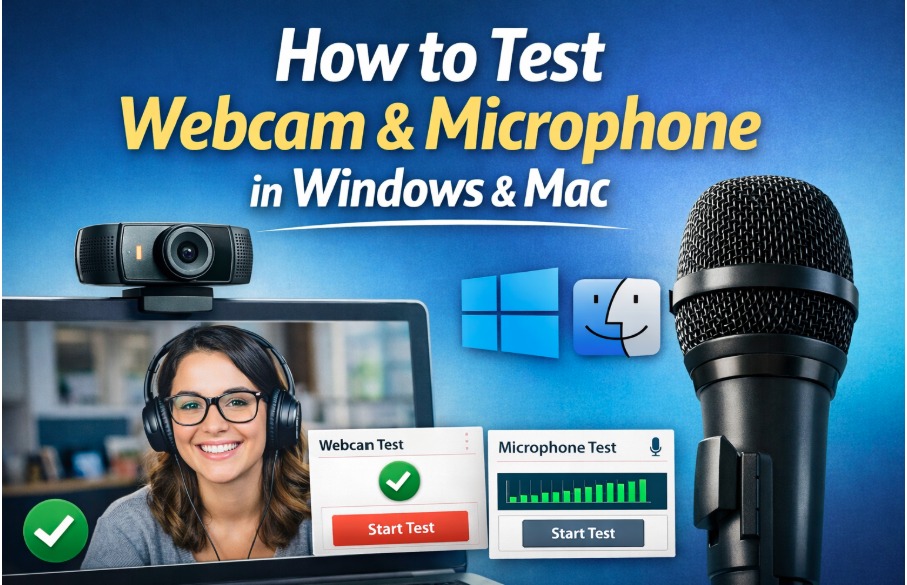
Many people join online meetings or video calls and suddenly realize their camera is not showing video or their microphone is not picking up sound. This usually happens at the worst moment. You may already be inside a meeting, a webinar, or an online interview. Others are waiting while you try to figure out what went wrong.
But the good news is you can test your webcam and microphone in a minute before starting any meeting. You can quickly check your devices using system settings or simple online tools. Platforms like Teste Webcam allow you to instantly see if your camera is working, while Teste Microfone helps you verify that your microphone is capturing sound properly.
In this guide, you will learn simple ways to test your webcam and microphone on Windows and Mac so you can join meetings with confidence.
Why It Is Important to Test Your Webcam and Microphone
Testing your webcam and microphone before joining a meeting can save you from many common problems. When devices are not checked in advance, users often spend the first few minutes fixing audio or video issues. This interrupts the flow of the meeting and can create a poor first impression.
A quick test helps you confirm that the correct camera and microphone are selected. It also allows you to check sound levels, lighting, and video quality. If something is not working, you have enough time to fix it before the meeting starts.
Testing your setup also improves communication. Clear audio and video make it easier for others to understand you. This is especially important during interviews, webinars, presentations, and professional meetings where clarity matters.
Quick Ways to Test Webcam and Microphone
There are several simple ways to check whether your webcam and microphone are working properly. Most computers already include built in tools that allow you to test these devices. You can also use browser based tools or video call apps to confirm that both audio and video are functioning correctly.
Below are some of the easiest methods you can use to test your webcam and microphone in just a few minutes.
Using Built In System Tools in Windows and Mac
Both Windows and Mac provide built in features that help you test your camera and microphone. Windows users can open the Camera app to see the live video feed from the webcam. Microphone levels can be checked from the sound settings.
Mac users can use the Photo Booth app to quickly see their webcam preview. To test the microphone, they can open the sound settings and watch the input level respond while speaking.
These built in tools are quick and reliable. They help confirm that your hardware is connected and working correctly.
Using Online Webcam and Microphone Testing Tools
Online testing tools are one of the fastest ways to check your devices. These tools work directly inside your browser. You do not need to install any software.
For example, you can quickly test your camera using Teste Webcam to see a live preview of your webcam feed. If the video appears clearly, your camera is working.
You can also check your audio input with Teste Microfone. Simply allow the browser to access your microphone and speak. The tool will show audio levels to confirm that your microphone is capturing sound properly.
Recording a Test Video
Another simple way to test both devices is by recording a short video. Many computers include apps that allow you to record video clips.
When you play the recording back, you can check both the video quality and the audio clarity. This gives you a good idea of how others will see and hear you during a meeting.
Testing With Another Person
You can also test your webcam and microphone by making a quick video call with a friend or colleague. During the call, ask them if they can see and hear you clearly.
This method is helpful because it shows how your setup performs during a real conversation. It also helps you confirm that your internet connection and video call software are working properly.
Common Problems When Testing Webcam or Microphone
Sometimes, testing your devices doesn’t go as planned. One common issue is browser permission. Your camera or microphone may be blocked if the browser doesn’t have access. Tools like Teste Webcam and Teste Microfone can help you quickly detect this.
Another problem is incorrect device selection. If you have multiple microphones or webcams connected, the wrong one might be active. Make sure the correct device is chosen in your system settings or on the testing site.
Other applications using the camera can also cause issues. Programs like Zoom, Teams, or video recording apps might block your device. Close these apps before testing.
Finally, internet or performance issues can affect video and audio quality. Slow internet, background processes, or heavy apps can cause lag. Testing with a stable connection helps avoid interruptions.
Tips to Improve Webcam and Microphone Performance
Good preparation makes testing easier. Use bright, natural lighting for a clear webcam image. Close unnecessary apps and browser tabs to improve system performance.
A stable internet connection is essential. If possible, use a wired connection or stay close to your Wi-Fi router. Updating system drivers regularly ensures your devices work smoothly. If your devices are still not detected, a simple restart of your computer often fixes the problem.
Conclusion
Testing your webcam and microphone before a meeting prevents technical issues and saves time. Both Windows and Mac offer easy ways to check devices, while online tools make the process faster and more convenient.
By testing your setup in advance with websites like Teste Webcam and Teste Microfone, you can join calls confidently and avoid last-minute problems.
Frequently Asked Questions (FAQ’s)
Can I test my webcam or microphone without installing anything?
Yes, online tools like Teste Webcam and Teste Microfone let you test instantly in your browser. No software needed.
How do I fix blurry video or low audio volume?
Adjust your lighting, check microphone volume settings, and make sure your camera lens is clean.
Why does my device work on one app but not others?
Some apps may block access. Close apps like Zoom, Teams, or Skype, then test again.
Can online tests detect hardware issues?
Yes, if your device isn’t working, the tools will indicate no signal or low input, helping you identify problems early.
Are these tests safe for privacy?
Absolutely. These websites only access your devices for testing and don’t store video or audio.