


Greetings, Rivals!
Thank you for your continued support of Marvel Rivals.
We are pleased to announce that the High/Low-Resolution Resource Pack feature is now available.
This feature uses the DLC mechanism to distinguish between the high-resolution and low-resolution resource packs for the game. On NetEase Fever Games, Steam, and the Epic Games Store (coming soon), players who already own Marvel Rivals may choose whether to enable this DLC based on their needs:
– DLC enabled: High-resolution resource pack will be used
– DLC disabled: Low-resolution resource pack will be used
Compared with the high-resolution resource pack, the low-resolution resource pack will reduce the overall installation size to a certain extent. However, visual fidelity may be reduced in some cases.
Please select the appropriate version based on your device performance and personal needs.
To use the High/Low-Resolution Resource Pack feature properly, please ensure that your game has been updated to the latest version.
Instructions for Enabling / Disabling the High/Low-Resolution Resource Pack
Loading Bay Games
First-Time Download
A game version selection menu will appear to the left of the download button.
Click the menu to view the available version options:
– Game Only
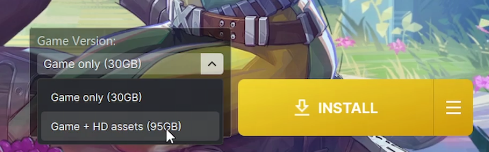
– Game Only + HD assets
You may choose the version you wish to download based on your needs.
For Players Who Have Already Downloaded the Game
After the download is complete, the button status will change to Play.
For players who selected Game Only during the first download, a prompt will appear in the menu on the right side of the main button.
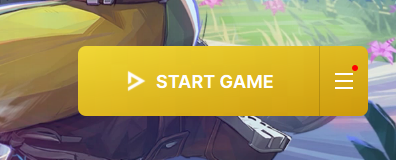
Click the menu on the right side of the main button, and you will see Download HD assets.
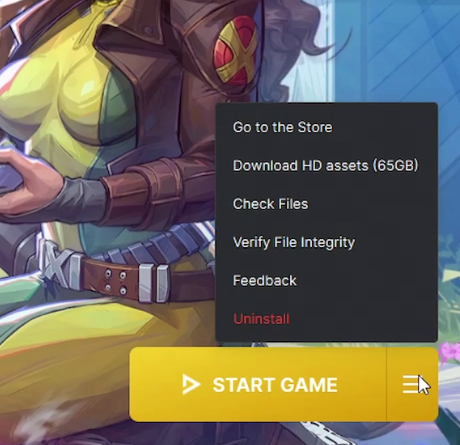
After selecting this option, the button will return to the download state.
Once the download is complete, the button will change back to Play, and the game package will be switched to the high-resolution resource package.
Steam
First-Time Download
The DLC will be enabled by default when players download the game for the first time.
After the download is complete, the high-resolution resource pack will be enabled.
Players who wish to use the low-resolution resource pack from the initial download may follow the steps below:
– Open your Steam Library.
– Right-click Marvel Rivals.
– Select Properties.
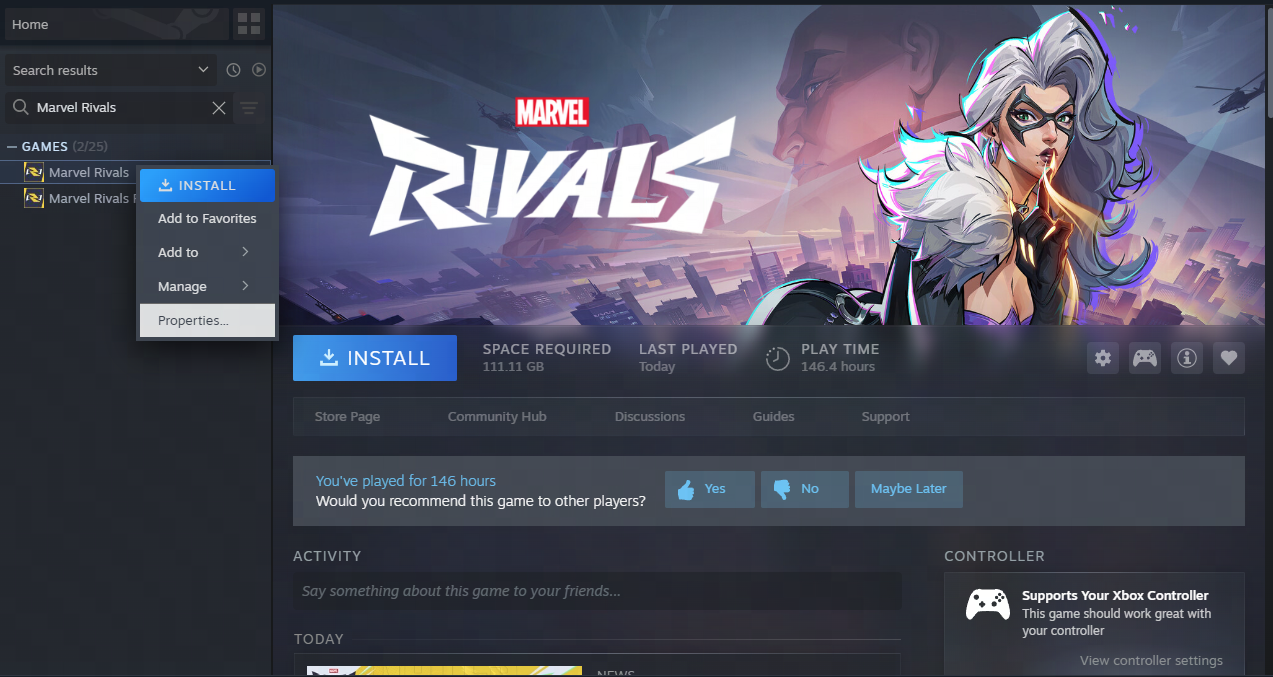
– Go to the DLC tab.
– Uncheck the DLC to switch to the low-resolution resource pack.
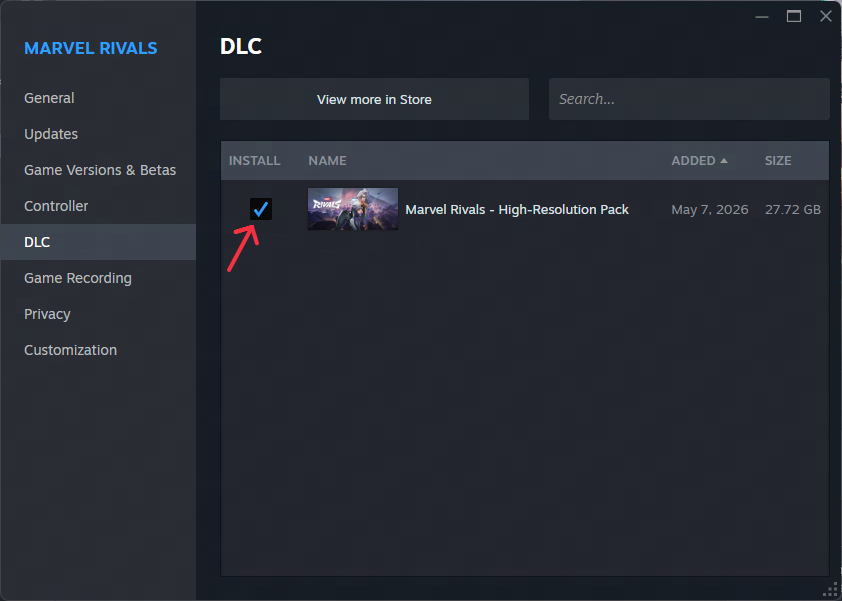
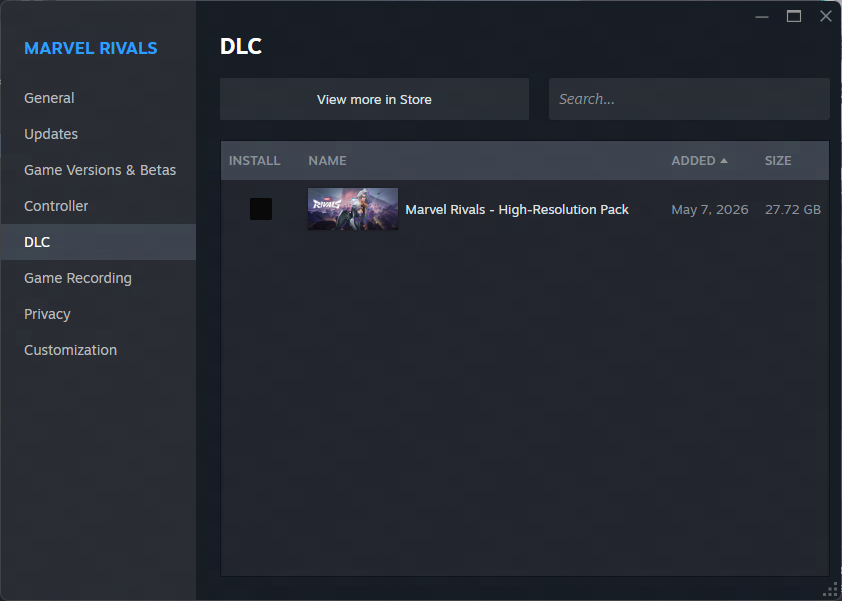
If the DLC is checked again, the high-resolution resource pack will begin downloading.
For Players Who Have Already Downloaded the Game
– Open your Steam Library.
– Right-click Marvel Rivals.
– Select Properties.
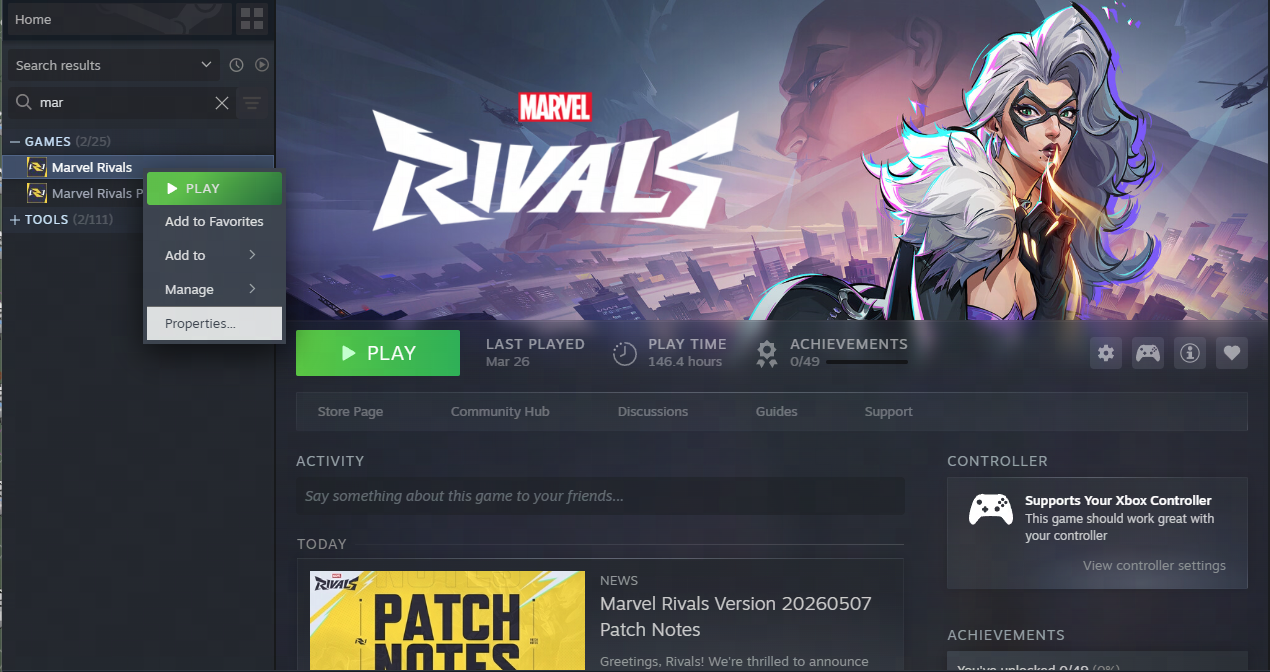
– Go to the DLC tab.
– Check Marvel Rivals High-Resolution Resource Pack to enable the high-resolution pack.
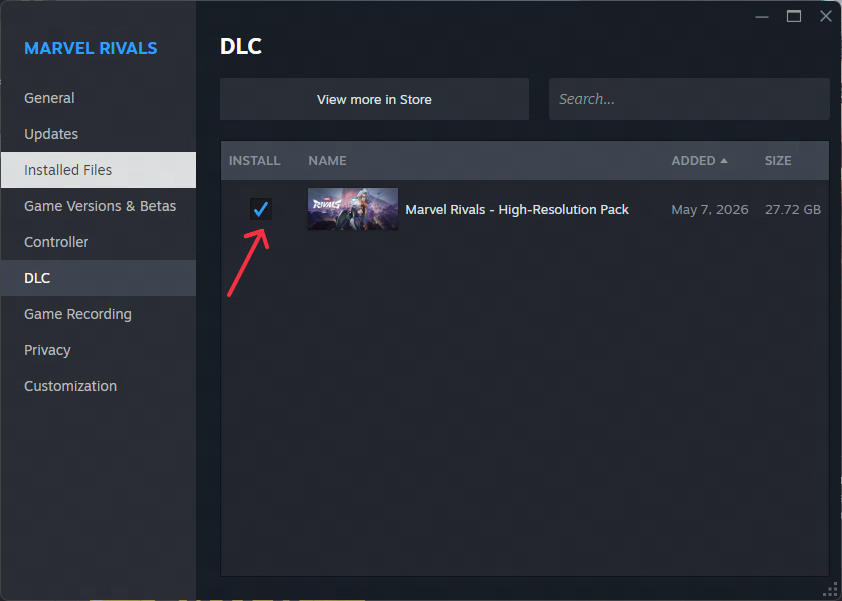
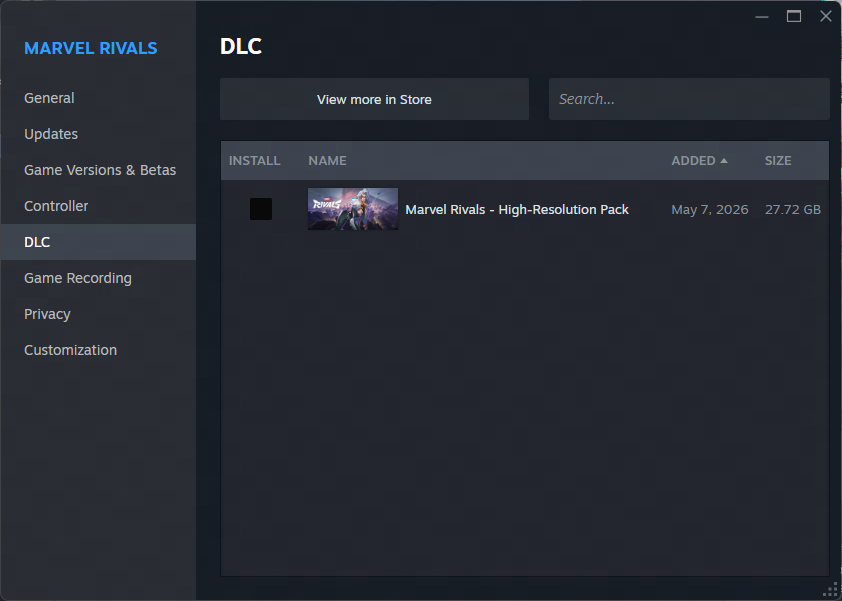
– Uncheck it to switch to the low-resolution resource pack.
If the DLC is checked again, the high-resolution resource pack will begin downloading.
Epic Games Store (Coming Soon)
First-Time Download
The DLC will be enabled by default when players download the game for the first time.
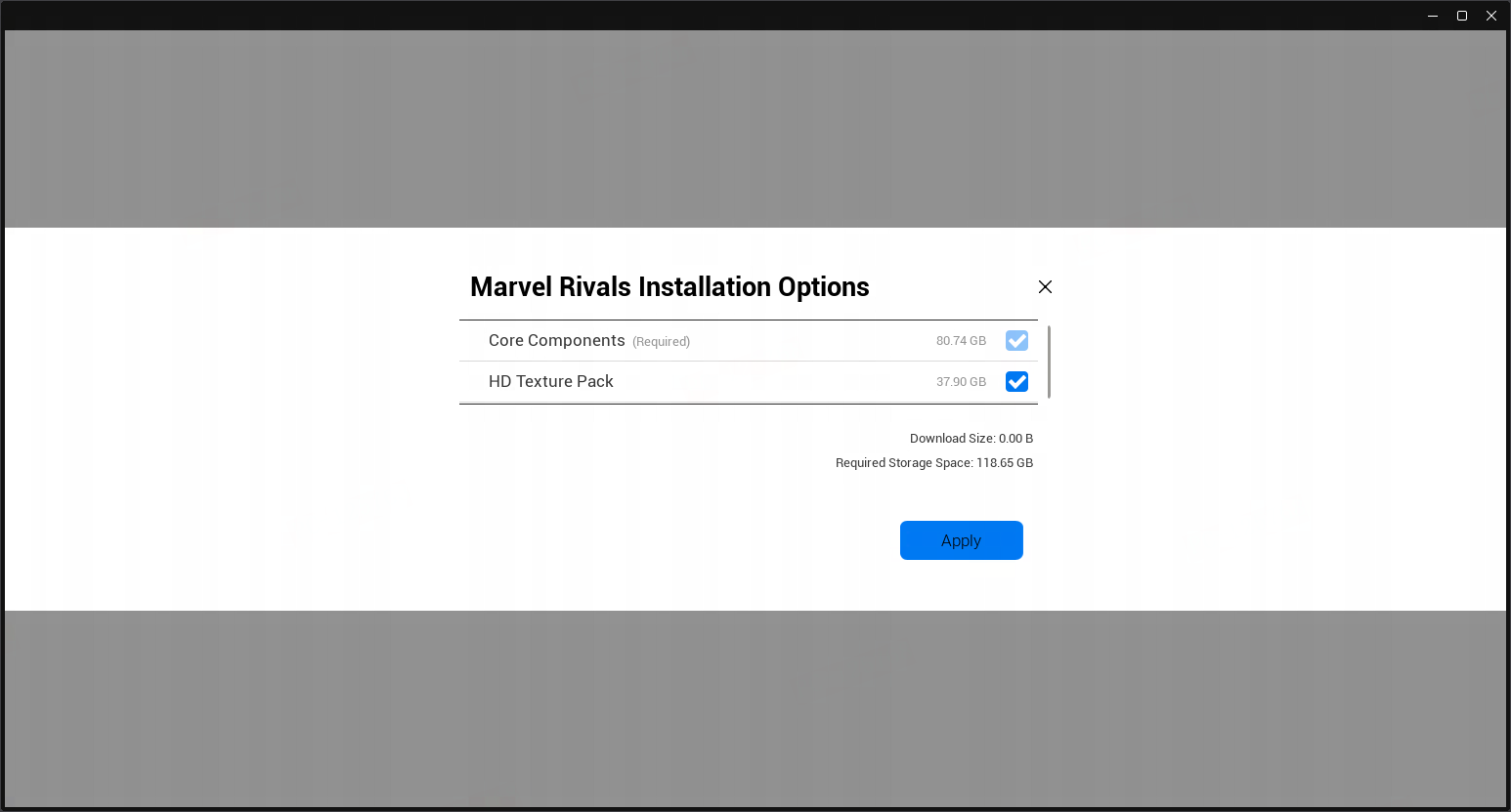
After the download is complete, the high-resolution resource pack will be enabled.
For Players Who Have Already Downloaded the Game
– Open your Epic Games Library.
– Click the “…” button next to Marvel Rivals.
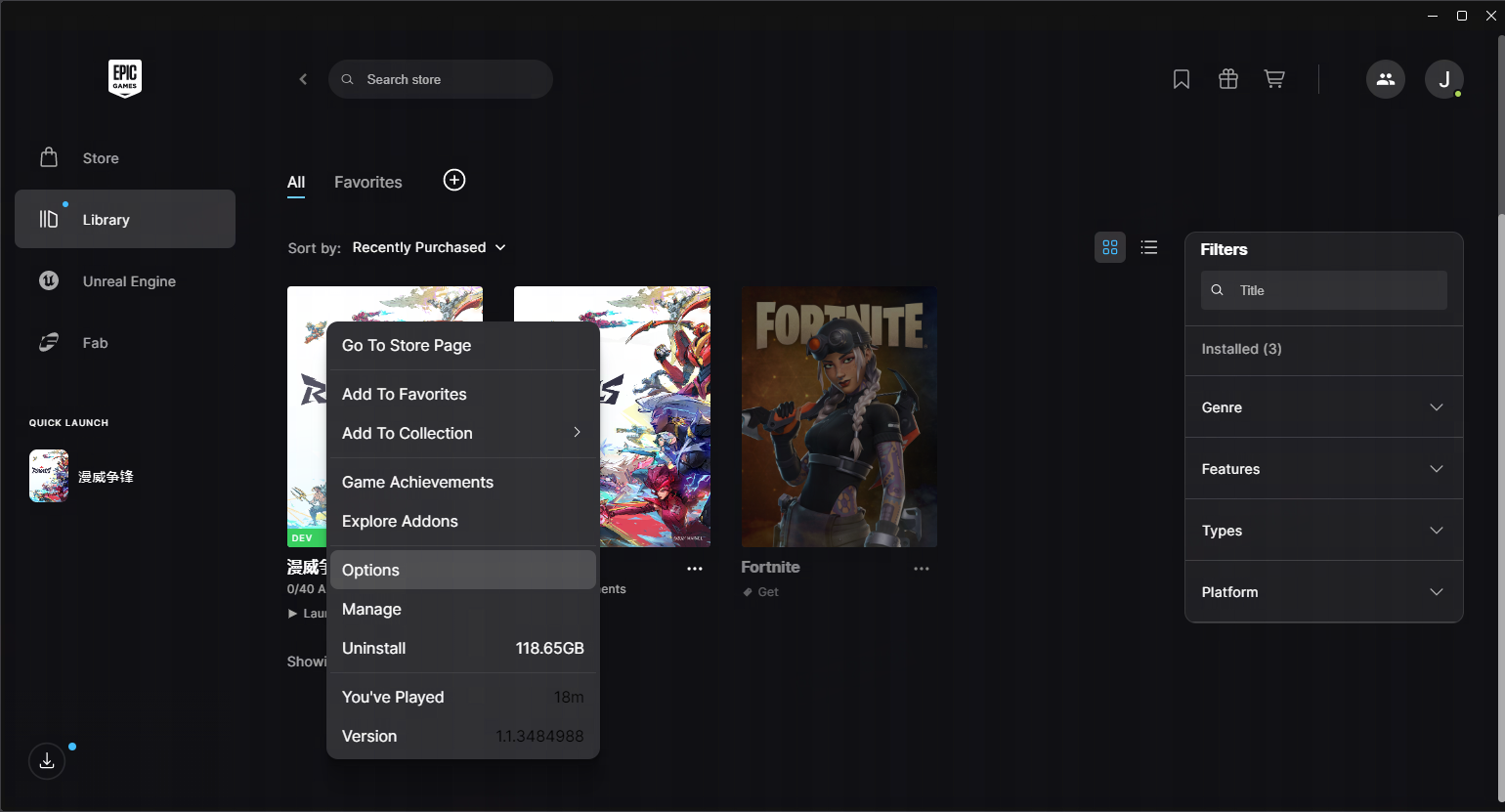
– Select Options.
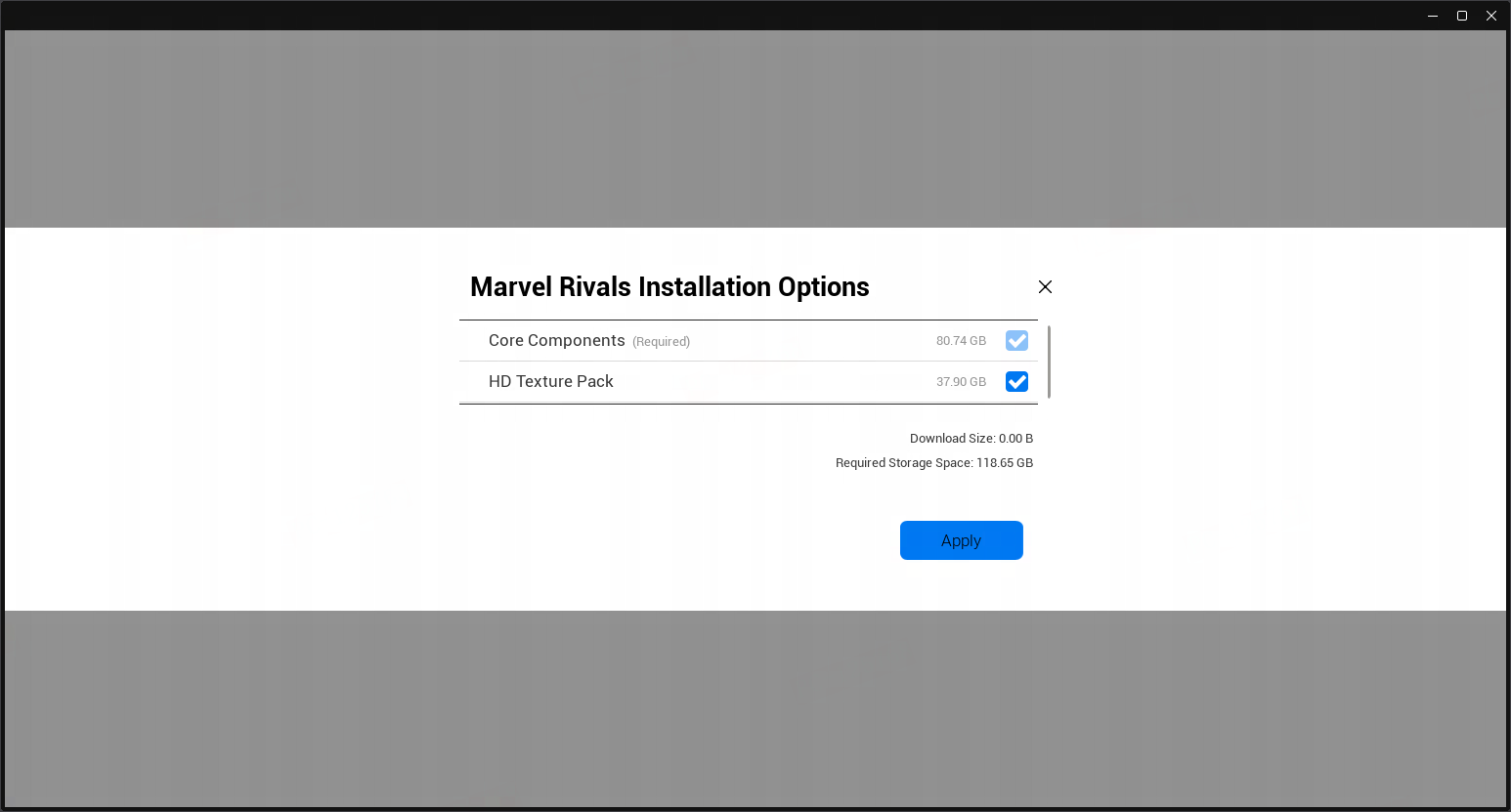
– Enable or disable Marvel Rivals HD Texture Pack to switch between resource packs.
Additional Notes
After the DLC is enabled or disabled, the game will automatically load the corresponding resources.
If you encounter any issues during the switching process, please contact us through the official support channels.
Should you encounter any operational difficulties during this process, please contact our official customer support for assistance.
The MARVEL RIVALS official team remains committed to providing an enhanced gaming experience for all players. We sincerely appreciate your broad support for MARVEL RIVALS.
Marvel Rivals Development Team